HTML to EPUB Converter

Convert HTML files, saved web pages and AO3 downloads into EPUB ebooks. Chapters, a clickable table of contents, images and a cover are built for you, and you can check everything before you download.

  • Free, no account
  • Converted in your browser, files are not uploaded
  • .html, .htm, .xhtml and .zip
  • EPUB 3, readable by EPUB 2 apps

Your book preview appears here

Add a file on the left, or load a sample to see the chapters, a preview and the check report.

  • Chapters and a clickable contents list
  • Images embedded, with missing ones listed
  • Preview each chapter before you download

How to Convert HTML to EPUB

The whole job takes three steps. Chapters, the contents list and images are found automatically; step 2 lets you check them before you download. For Calibre and Pandoc instructions, read the HTML to EPUB conversion guide.

  1. 1

    Add your HTML

    Choose or drop an .html, .htm or .xhtml file. If the page has images in a separate folder, add the folder too, or a ZIP of both, so the converter can find them. You can also paste HTML source code.

  2. 2

    Check the book

    The converter reads the title and author, splits chapters and finds images. Look through the contents, preview any chapter, and read the check report for missing images or removed links. Rename or leave out chapters and change the cover or formatting if you like.

  3. 3

    Download and read

    Select Create EPUB to download the file. Then open it in Apple Books, Google Play Books, on a Kobo, in a desktop reader, or send it to your Kindle. The device guide below shows the steps for each one.

Try an HTML to EPUB Sample

No HTML file at hand? Load one of these original samples into the converter, or download the input and the EPUB this converter made from it, and compare the two.

Long-read article

A blog-style article saved together with its site menu and footer.

Contains
Headings, bold and italic text, two kinds of lists, a quote, a web link.
What to check
One chapter with three subheadings in the contents. The site menu and footer are left out because the converter keeps only the article.

Multi-chapter short story

An original four-chapter story with an author's note, a footnote and an afterword.

Contains
Title and author, four chapters, a footnote with a back-link, a link between chapters.
What to check
Five chapters: the opening note and four chapters. The footnote number in Chapter 2 jumps to the note in Chapter 4, and back.

Illustrated tutorial (ZIP)

A how-to page with an images folder, packed as a ZIP.

Contains
SVG and PNG images, an embedded icon, figure captions, a table, code blocks, footnotes.
What to check
Three of four images are embedded. The fourth is missing from the folder on purpose, and the check report names it.

The three sample EPUBs were made by this converter and checked with EPUBCheck 5.1.0, the W3C's EPUB validator: 0 errors and 0 warnings (checked 2026-11-26).

What HTML Files Can You Convert?

The converter works with files on your device. It does not fetch web pages by their address. To convert a page from the web, save it from your browser first.

What HTML Files Can You Convert?
What you haveHow to add itSupport
A web page saved from your browserSave with “Web Page, Complete”, then add the .html file together with its _files folder, or drop both. With “HTML only”, images that were not embedded in the page are reported as missing.Needs the files
An AO3 HTML downloadAdd the .html file from the work's Download menu. The title, authors, tags, summary, chapters and notes are recognized.Supported
HTML you wrote or copiedAdd the file, or use Paste HTML to paste the source code.Supported
HTML exported from a writing app or word processorAdd the exported file and its image folder. Headings become chapters, and the reading layout replaces the exported styling.Supported
Several chapter filesAdd them together. They become chapters of one book in natural order (1, 2, 10), which you can change. Or create one EPUB per file.Supported
A ZIP with HTML, images and CSSAdd the ZIP. It is unpacked in your browser and relative image paths keep working.Supported
A web address (URL)Save the page from your browser, then add the saved file.Not supported
.mhtml, .mht or .webarchive filesSave the page as “Web Page, Complete” or “HTML only” instead, then add that file.Not supported
PDF, Word or EPUB filesFor Word, use Save As and choose Web Page to get an .htm file and its image folder, then add both.Not supported
File typesHTML: .html, .htm, .xhtml, .xht, .shtml. Archives: .zip. Images: PNG, JPEG, GIF, WebP, SVG, plus BMP, AVIF, TIFF and ICO when your browser can decode them. Stylesheets: .css.Details

What Is Preserved When You Convert HTML to EPUB?

The converter rebuilds your content as clean EPUB pages. This is what happens to each kind of content.

When a page marks its content with a main or article element, only that part goes into the book, so the site menu, sidebar and footer stay out. Navigation bars, scripts and embedded frames are removed from any page, and the text reflows to fit an e-reader or a phone.
What Is Preserved When You Convert HTML to EPUB?
ContentWhat happensStatus
Headings and paragraphsKept in their original order and level. Line breaks inside paragraphs are kept.Supported
Bold, italic, underline, strikethroughKept, along with superscript, subscript and small text.Supported
Lists and quotesNumbered, bulleted and definition lists, block quotes and inline quotes are kept.Supported
Images and captionsEmbedded when the image file is available. Figure captions are kept. Missing images are listed in the report and replaced by their alt text.Needs the files
Links to websitesKept, and they open in the reader's browser. Relative links on saved pages become full web links when the page's original address is known. Opening them needs an internet connection.Supported
Links within the documentRewritten to the right chapter after splitting, including links between HTML files you add together. Links to files that are not in the book are removed and their text is kept.Supported
Footnotes and endnotesNote links and back-links keep working across chapters. They stay ordinary links; pop-up notes depend on your reader app.Supported
TablesKept with header cells, captions and merged cells, at full screen width with wrapping cells. Very wide tables can still be cramped on a phone.Limited
Code blocksIndentation is kept and long lines wrap instead of being cut off.Supported
Accents, CJK text and symbolsRead with the file's declared character set, or UTF-8. You can pick another encoding if letters look wrong.Supported
Alt text, language and directionImage alt text, lang attributes and right-to-left direction are kept.Supported
Inline SVG and MathMLKept. Scripts and references to outside files inside them are removed.Supported
Colors, fonts and page layoutDropped in the reading layout. Keep basic styles keeps inline styles and page CSS, without web fonts or background images. Fonts are not embedded, so the book uses your reader’s fonts.Limited
Scripts, forms, video and embedsRemoved. Reader apps do not run page scripts. The report counts what was removed.Not supported

Keep Images in Your EPUB

Whether an image makes it into the book depends on where the image file is. The converter checks every image and tells you which ones it could not embed. A browser can only read the files you add, so choosing one HTML file does not give the converter the image folder next to it.

Keep Images in Your EPUB
Where the image isWhat the converter does
Inside the HTML (data URI)Decoded and added to the book. Nothing else is needed.
A file next to the HTMLAdd the image files or their folder along with the HTML. Paths such as images/photo.jpg or Page_files/photo.jpg are matched, and if the folder differs the file name is used.
Inside a ZIPFound by its path inside the archive.
On another websiteYour browser tries to download it while “Download images from the web” is on. Many sites block downloads requested by other pages, so some web images are reported as blocked. Saving the page as “Web Page, Complete” gives you local copies.
Lazy-loaded imagesThe real address in data-src, data-original or srcset is used instead of the placeholder image.

Formats and quality

PNG, JPEG, GIF, WebP and SVG are embedded unchanged, so their quality is not reduced. BMP, AVIF, TIFF and ICO are converted to PNG when your browser can decode them. Images are not resized or compressed, so a book with many large photos is large too. The cover is chosen separately, in the cover options.

Works offline

Every embedded image is stored inside the EPUB file and shows without an internet connection. Missing images do not stop the conversion: the EPUB is still created, the report lists each missing image, and its alt text is shown in its place. Missing images are not linked from the web either.

Image report for the tutorial sample
  • 4 images found
  • 3 embedded: structure.svg, bookshelf.png and an icon inside the HTML
  • 1 missing: images/progress-chart.png, file not found
  • In the book it reads: [Bar chart of books finished per month]

Create Chapters and a Clickable Table of Contents

Each chapter is a separate page in the EPUB, so readers start it on a new screen and the contents list jumps straight to it.

One long HTML page becomes a book of chapters. Each chapter starts on a new page in the EPUB, and the same headings become the contents list.

How chapters are found

  • Automatic mode splits at Heading 1 when a document has several. If there is a single Heading 1 used as the book title, it splits at Heading 2.
  • Short articles stay in one chapter. A lower heading level only starts chapters when the sections are long or the headings look like chapters, such as Chapter, Part, Prologue or 第一章. The subheadings still appear in the contents.
  • AO3 downloads follow AO3's own layout: the preface, each chapter and the afterword.
  • You can also choose Heading 1, 2 or 3, one chapter per file, or keep everything as one chapter.
  • Text before the first chapter heading becomes an opening chapter, named after the heading or title it contains.
  • In the contents list you can rename any chapter or untick it to leave it out. Links into a chapter you leave out are removed.
  • The contents can list chapters only, or chapters with one level of subheadings. Chapters follow the file order; to reorder chapters inside one file, edit the HTML first.
Headings in the story sample, and the contents they produce

Headings in the HTML

  • h1The Lighthouse Ledger
  • h2Chapter 1: The Last Keeper
  • h2Chapter 2: Weather and Ships
  • h2Chapter 3: The Missing Year
  • h2Chapter 4: What Belongs in a Museum

Contents in the EPUB

  1. The Lighthouse Ledger
  2. Chapter 1: The Last Keeper
  3. Chapter 2: Weather and Ships
  4. Chapter 3: The Missing Year
  5. Chapter 4: What Belongs in a Museum

Two kinds of table of contents

Reader navigation

Opened with the reader app's Contents button. Always created, as an EPUB 3 navigation document plus an NCX file for older readers. Subheadings appear one level below their chapter.

Contents page

A page in the book that lists the chapters, after the title page. On by default; you can turn it off under Chapters and contents.

Readable Formatting for Every Screen

This converter makes reflowable EPUBs: the text reflows to the screen and to the reader's font size. It does not copy the exact look of the web page, which is what makes the book comfortable on a phone or e-reader.

Reading layout (default)

Removes the page's CSS, fixed widths and margins. Headings, paragraphs, quotes, tables and code get simple book styles, and your reader's font, size and margin settings apply. Best for stories, articles and long text.

Keep basic styles

Keeps inline styles, classes and CSS from the page or from CSS files you add, without web fonts, background images or fixed positioning. Use it when colors or highlights matter. Some reader apps override parts of it.

Formatting options

  • Paragraphs: indented first lines like a printed book, or spaced blocks like a web page.
  • Alignment: left or justified.
  • Line spacing: normal or relaxed.
  • Images shrink to fit the screen and never overflow it.
  • Code wraps long lines. Tables span the screen width and their cells wrap.
  • No font or page margin is fixed, so your reader's settings take over.

Customize the Title, Author and Cover

The converter fills in what it finds in your file. You can change all of it before you download.

Customize the Title, Author and Cover
FieldFilled in from
TitleThe page's og:title or <title>, the AO3 work title, or the folder name when you add several files.
AuthorThe author meta tag or the AO3 byline. Several authors separated by commas are saved as separate creators.
LanguageThe page's lang attribute or the AO3 language. Readers use it for hyphenation, dictionaries and read-aloud voices.
DescriptionThe meta description or the AO3 summary. Many readers show it in the library.
TagsMeta keywords, or AO3 fandom, relationship, character and additional tags.
Source URLThe canonical address of the page or the AO3 work. It is also shown on the title page.
Series and numberAO3 series information, or typed in. Saved in both the EPUB 3 and Calibre formats.
Publisher and file nameOptional. Type them in yourself.

Cover options

  • Title cover: a typographic cover drawn in your browser from the title and author.
  • Upload: your own JPEG, PNG, WebP or GIF image.
  • First image: reuses the first picture in the book.
  • None: no cover page.

A title page with the title, author, series and source link follows the cover. You can turn it off.

  • The file name only names the downloaded file. The name your reader shows in its library is the Title field.
  • This converter makes new EPUBs from HTML. To change the cover of an EPUB you already have, use the EPUB cover editor. To fix its title, author or language, use the EPUB metadata editor.

Convert Multiple HTML Files

Adding several HTML files can mean two different things. Choose one under Output.

One book (default)1 EPUB with 10 chapters and one contents list
One EPUB per file10 EPUBs, downloaded together as a ZIP
Convert Multiple HTML Files
ModeYou addYou getDetails
One book (default)10 chapter files1 EPUB with 10 chapters and one contents listFiles are sorted by name in natural order. Move them up or down, or untick files to leave them out. Links between the files keep working.
One EPUB per file10 separate articles10 EPUBs, downloaded together as a ZIPEach book takes its title from its own file. Author, language, cover style and formatting apply to all of them. Links between the files are removed, because each book stands alone.

Natural order

Files named 1.html, 2.html and 10.html are put in that order, not 1, 10, 2. HTML files inside a saved page's _files folder are left out by default, because they are usually ads or frames.

There is no fixed number of files. Everything is processed in your browser's memory, so very large batches are limited by your device.

Turn Stories, Articles and Documents into EPUB

The same converter handles very different HTML. These are the cases it was built and tested for.

AO3 downloads

Add the HTML file from an AO3 work's Download menu. The converter follows AO3's download layout, so it:

  • Fills in the title, authors, language, series, summary and tags
  • Makes the preface, each chapter and the afterword separate chapters, without repeating headings
  • Lets you leave out the work info page or the author notes
  • Drops AO3's fixed page margins in the reading layout

For a reading copy with a specific chapter range or with author notes collected at the end, use the dedicated AO3 to EPUB converter.

Blog posts and long articles

Keeps the article and leaves out site menus and footers, embeds images saved with the page, and keeps web links working.

Tutorials and documentation

Keeps heading levels in the contents, code blocks with their indentation, tables, figures and footnotes.

Your own writing

Export your manuscript as HTML, add a cover, title, author and language, and test it on your reader before you share it.

Collections

Combine several articles or chapters into one book with one contents list, in the order you choose.

Read Your EPUB on Your Favorite Device

These are each platform's own import steps. How the book looks also depends on the reader app, so try a sample EPUB first if you want to check your device.

Read Your EPUB on Your Favorite Device
PlatformHow to add the EPUB
Apple Books (iPhone, iPad, Mac)On iPhone or iPad, open the downloaded file in the Files app, tap Share, then Books. On a Mac, double-click the EPUB or drag it into Books.
KindleSend the EPUB with Amazon's Send to Kindle (website, app or email). Amazon converts it for Kindle and delivers it to your Kindle devices and apps.
Kobo e-readersConnect the e-reader to a computer with a USB cable, copy the EPUB onto it, then eject it. The book appears in your library.
Google Play Books (Android, iPhone, web)On the Play Books website, choose Upload files and add the EPUB. It then appears in the Play Books app on your phone.
Other Android reading appsMost EPUB apps can open the file from Downloads, or import it from the app's library screen.
Windows, macOS and LinuxOpen the EPUB in a desktop reader such as Calibre's viewer or Thorium Reader to check the contents, chapters and images.

Send to Kindle also accepts HTML files. Converting to EPUB first gives the book chapters, a contents list, a cover and the details you choose.

Bookmarks, highlights, reading progress and read-aloud are features of the reader app, not of the EPUB file.

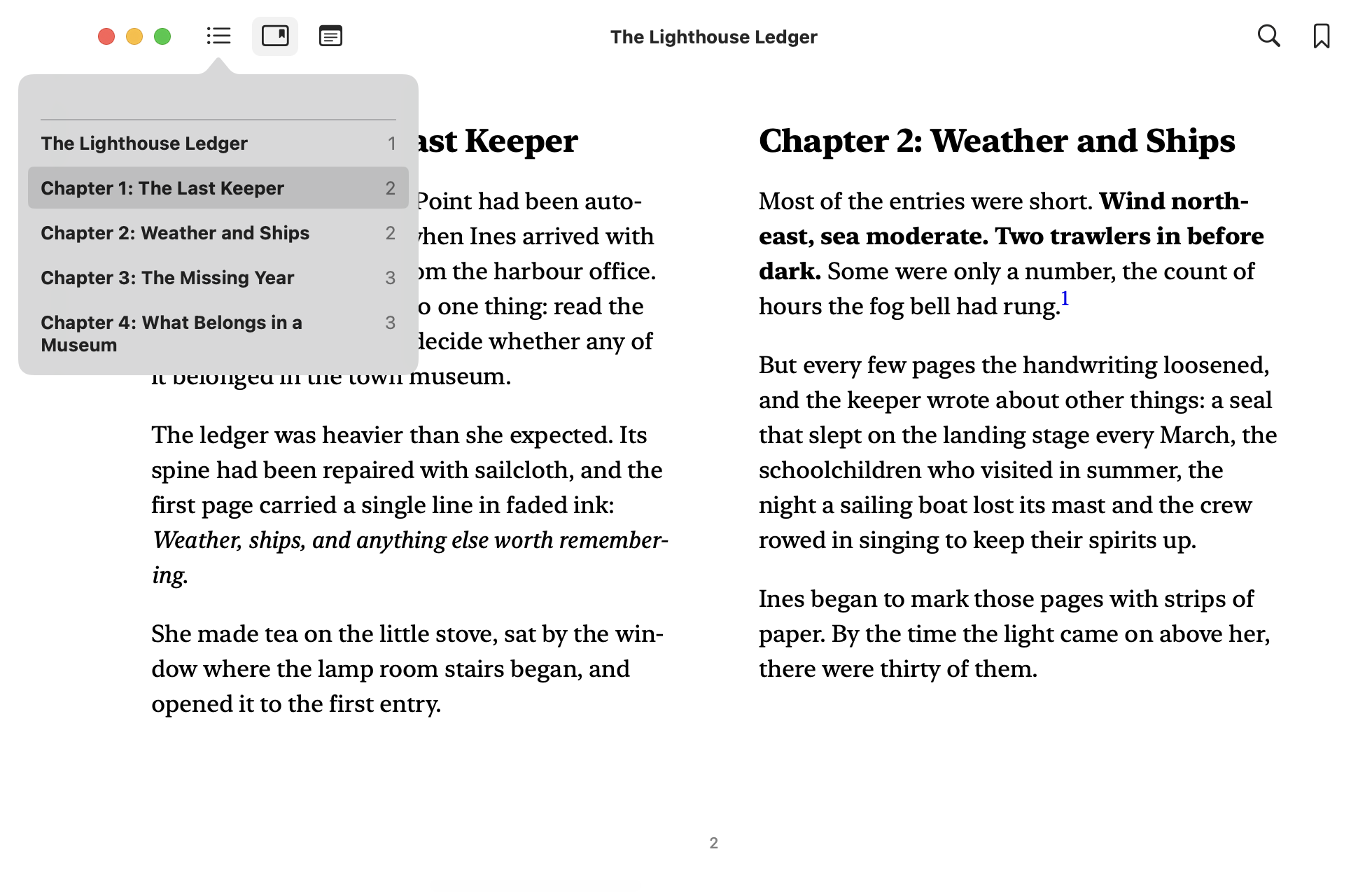
Enlarge the Apple Books screenshot showing The Lighthouse Ledger’s chapter menu and the text of Weather and Ships.
The Lighthouse Ledger in Apple Books on Mac. The four chapter headings in the sample HTML became entries in the EPUB’s table of contents.

Privacy, File Handling and Limits

What happens to your files, and what the converter can and cannot handle. The full details are in the privacy policy.

Where conversion happens
Your files are read and converted by JavaScript running in this page. They are not uploaded to our server, and nothing is kept after you close or reload the page. Your original files are only read, never changed.
Web images
While “Download images from the web” is on, your browser requests those images directly from the websites that host them. Turn it off and the converter makes no network requests for your book.
Ads and analytics
This site may show ads and use analytics, which receive normal page-visit data but not your files. The converter area is masked from session recordings.
Price and account
Free to use, with no account and no daily limit.
File size
There is no fixed size limit. Everything happens in your device's memory, so very large books with many images can be slow or fail on a phone. If that happens, convert fewer files at once or leave out large images.
Devices and browsers
The converter uses standard browser features found in current Chrome, Edge, Firefox and Safari, on computers and phones. Opening ZIP files needs a browser version from 2023 or later. If your phone cannot choose a folder, add a ZIP of the HTML and its images instead.
Offline use
The converter does not need a server. After the page has loaded, it makes no network requests for your files, except for web images while that option is on. The page itself needs a connection to load and is not installed for offline use.

Check Your EPUB Before Downloading

Three kinds of checks tell you different things about the book.

  1. 1

    Content check, every conversion

    The check report next to the preview lists the chapters, the images found and embedded, missing images with the reason, removed links, stripped content such as scripts or video, and character encoding problems.

  2. 2

    Structure check, every download

    Each EPUB is checked as it is built: the file type marker, container, manifest, reading order, navigation, required metadata, well-formed pages, internal links and images, and unique ids. The results appear after the download.

  3. 3

    Standards check, sample files

    The sample EPUBs on this page passed EPUBCheck 5.1.0, the W3C's official EPUB validator, with 0 errors and 0 warnings on 2026-11-26. EPUBCheck does not run in a browser, so it is not run on your files, but you can run it yourself on any EPUB.

None of these checks proofreads your text, and EPUBCheck does not test accessibility. Open the book in your reader to confirm it looks the way you want.

Fix Common HTML to EPUB Problems

If the book does not look right, start with the check report. These are the problems people run into most, and what to change.

Fix Common HTML to EPUB Problems
ProblemLikely causeWhat to do
The EPUB has no textThe file is a login page or error page, or the page loads its text with scripts.Open the saved file in your browser. If the text is missing there too, save the page again after it has fully loaded, or copy the article's HTML and use Paste HTML.
Images are missingThe images were not saved with the page, or the website blocks downloads.Save the page as “Web Page, Complete” and add its _files folder, or add the image files. The report has an Add missing files button.
Letters look garbled (é, ’, ????)The file's character set is missing or wrong.Under Content and images, choose another text encoding, such as UTF-8, Windows-1252, GBK, Big5 or Shift_JIS, and check the preview.
The reader shows no table of contentsThe document has no headings, or only one.Choose a heading level under Chapters and contents and keep subheadings on. Without any headings the book has a single chapter.
Every small section became a chapterThe chapter level is too low for this document.Choose a higher level, such as Heading 1 instead of Heading 2, or Keep as one chapter.
Chapters are in the wrong orderThe file names do not sort the way you expect.Move the files up or down in the Files list.
Huge margins or tiny textThe page's CSS sets fixed widths and margins.Use the Reading layout instead of Keep basic styles.
Tables or code run off the screenWide content on a narrow screen.Code already wraps. For wide tables, turn the device sideways or lower the reader's font size.
Footnote links go nowhereThe notes are in a file you did not add, or in a chapter you left out.Add every file of the document and keep the chapter with the notes. The report lists removed links.
Menus, ads or comments are in the bookThe page has no main or article element that marks the content.Untick chapters you do not need, or copy only the article's HTML and use Paste HTML.
Conversion stops on a phoneThe phone ran out of memory with large images.Convert fewer files at once, turn off web images, or use a computer for very large books.
You cannot find the downloaded EPUBEach browser saves downloads in its own place.Open your browser’s downloads list. Computers and Android phones usually save to the Downloads folder, and iPhone and iPad save to Downloads in the Files app. You can also use Download again.
The EPUB will not openThe reader app does not support EPUB, or the download was interrupted.Check the structure results after the download, download again, and follow the import steps for your reader.

HTML to EPUB FAQ

How do I convert HTML to EPUB?

Add your HTML file, a ZIP or several files to the converter at the top of this page, check the title, chapters and images, then select Create EPUB. The book downloads straight away.

Is this HTML to EPUB converter free?

Yes. There is no account, no subscription and no download fee. The site is supported by ads.

Can I convert a web page from its URL?

No. Save the page in your browser first, then add the saved file. Browsers do not let one page read another website, so converting by URL would need a server to fetch the page for you.

Does it support MHTML, Webarchive, PDF or Word files?

No. It reads HTML files (.html, .htm, .xhtml), ZIP files, and the images and CSS that go with them. Save web pages as “Web Page, Complete”, and save Word documents as a web page first.

How do I keep the images?

Add the image files or their folder together with the HTML, or use a ZIP. Images inside the HTML and many web images are added automatically, and the check report lists any image that could not be.

How is the table of contents created?

From the headings in your HTML. The converter picks the heading level that marks chapters, lists subheadings under them, and creates the reader’s navigation plus an optional contents page. You can change the level, rename chapters or leave them out.

Can I combine several HTML files into one EPUB?

Yes, that is the default. Each file becomes one or more chapters, in an order you can change. To get one EPUB per file instead, change Output.

Does it work with AO3 HTML downloads?

Yes. It recognizes AO3's download layout and reads the title, authors, tags, summary and chapters. You can leave out the work info page and the author notes.

Can I use it on an iPhone or Android phone?

Yes. Choose the file from Files or Downloads, create the EPUB, and open it in Books or your reading app. Very large books are easier on a computer. If your phone cannot choose a folder, add a ZIP of the HTML and its images.

Where is the EPUB saved?

Wherever your browser saves downloads: usually the Downloads folder on a computer or Android phone, and Downloads in the Files app on iPhone and iPad.

Are my files uploaded or stored?

No. The conversion runs in your browser and nothing is saved on our server.

Is there a size or file limit?

There is no fixed limit and no fee. The practical limit is your device's memory.

Why does my EPUB look different from the web page?

EPUB text reflows to fit the screen and the reader's settings, and the reading layout removes web page styling on purpose. Choose Keep basic styles to keep more of the original look.

How do I get the EPUB onto my Kindle?

Use Amazon's Send to Kindle with the EPUB file. The device steps above explain each platform.

Ready to make your ebook?

Add an HTML file, check the chapters and images, and download your EPUB.

Start converting