

AO3 to EPUB Converter
Convert a downloaded AO3 HTML work into an EPUB. Choose chapters, keep or move author notes, and preview the book before downloading.
Choose which AO3 chapters to export
Use the checkboxes for individual chapters or apply a range by position in your file. The book and its clickable contents follow the original order, including the original chapter titles.
Read the four chapter counts
Suppose a file records 12/20, contains 12 chapter bodies, and you select chapters 3–7. Here is what each number tells you.
- Chapters in file
- 12
- Recorded as published
- 12
- Planned total
- 20
- Selected for export
- 5
For 12/?, the source gives no planned total. To check whether the author has published more since you saved it, follow the original work link on AO3.
Try chapter selection with Night PostKeep your AO3 book details
Two copies with similar filenames can look identical on a reading device. Set the title, creators and language in Book details, then choose which original fields belong on the information page.
| Field | What you can see in the source | What goes into the EPUB |
|---|---|---|
| Work title and filename | Night Post | The title is written inside the book. A partial export adds “Selected chapters” to that title. Use the filename field for your own filing convention. |
| Author or co-authors | Ash and Reed & Ink | Enter one creator per line. The ampersand in Reed & Ink stays inside that name, and the two authors receive separate creator entries. |
| Language | English | The sample exports with language code en. If recognition leaves the language unknown, enter the code for the story before exporting. |
| Work summary | Three letters cross an empty station. | Edit the library description and decide whether to print it on the information page. A chapter summary has its own switch. |
| Fandom, relationships and characters | Original Work is the fandom in Night Post. | Review the fields your file supplies, including additional tags. Selected tag groups are written as subjects for readers that expose them. |
| Rating and archive warnings | The Spare Key records General Audiences. Night Post records Creator Chose Not To Use Archive Warnings. | Keep the supplied wording. Choosing not to use archive warnings and declaring that no archive warnings apply are distinct author choices. |
| Series name and position | Part 2 of Platform Letters | Keep the series field to include its name and position in library metadata. This download contains one work from that series. |
| Original work link | An identified archiveofourown.org/works/ address | The converter keeps the work URL with the book and displays it on the optional information page. The original demo stories have no published AO3 URL. |
| Dates and chapter statistics | Night Post records publication on March 2, 2025 and an update on April 1, 2025. | The source statistics can appear on the information page. Creating an EPUB today gives the package its own modification date. |
Add a cover and compare reading styles
The Spare Key has three short paragraphs of dialogue. Compare the same passage in two editions, then open the files in the reader you use.
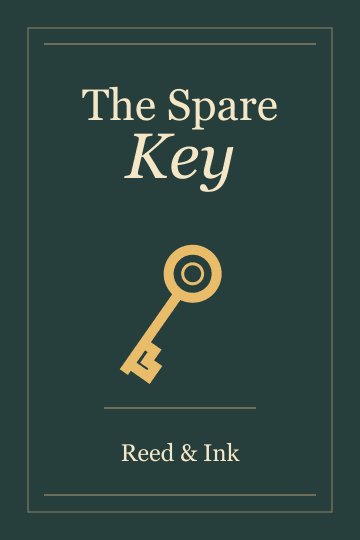
Use your own cover
Open Cover and illustrations and choose a JPEG, PNG, GIF or WebP from your device. Create the book and check its first page and the “Cover embedded” result. Remove or replace the image and create a fresh EPUB whenever you want a different cover.
Download this cover imageSpaced paragraphs
The key hung in the window for forty years. On Thursday someone finally came in to buy it.
“What’s it for?” asked the locksmith.
“My mother’s wind-up bird.”
Compact, indented paragraphs
The key hung in the window for forty years. On Thursday someone finally came in to buy it.
“What’s it for?” asked the locksmith.
“My mother’s wind-up bird.”
Emphasis, lists, quotations, deliberate line breaks and scene dividers can carry through as book text. AO3 work skins and a reader’s own font and margin controls can change the appearance. For poetry or chat-style dialogue, check a representative passage in the finished book.
Try these settings with The Spare KeyCheck which AO3 illustrations will work offline
Pocket Atlas refers to three pictures. Open the original sample EPUB offline and the island map still appears. The two other references leave short labels in the story.
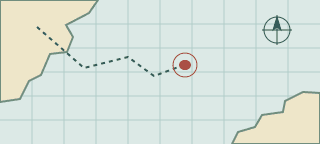
- Island map
- Embedded in the HTML
- The source contains the picture data. The converter decodes it and packages a PNG inside the book.
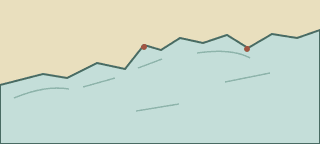
- Coastal sketch · coast.png
- Missing local file
- The HTML supplies a filename. Download the companion sketch below and add it under Cover and illustrations to include it in your copy.
- Inlet sketch · inlet.jpg
- Remote image
- This reference points to a web address. The converter leaves its alternative text and skips the network request.
Try repairing the sample
Open the Pocket Atlas sample in the workbench. Add coast.png as a missing image and create the book again. The report changes from one included, one missing and one remote to two included and one remote.
Read the EPUB preview and conversion report
Once your EPUB is ready, you can download it right away. In the preview, you can open chapters from the contents and follow links to author notes.
Check the edition
Read the internal title, creators, language and exported chapter positions. Compare the selection with the chapter you expected to open first. The download button also shows the output filename and size beside it.
Check the references
Review included pictures, unavailable destinations and web links. A working contents entry, an author-note return link and an external work link serve different purposes. External links need a connection in your reader.
Check the structure
Expand Structure checks for the file type marker, container, manifest, spine, navigation, metadata, well-formed XML, internal references and unique IDs. A missing illustration can be reported even when the finished EPUB passes its structure checks.
Inside the Pocket Atlas export
- Chapters in file
- 1
- Selected for export
- 1
- Structure checks
- 9/9
- Author notes
- Keep in place
Image references: 1 included, 1 missing or unsupported, 1 remote and not fetched.
The chapter opens with the island map. Farther down, the coastal sketch and inlet sketch appear as text labels. Compare the chapter with its resource report before adding the missing coast image.
Download the inspected Pocket Atlas EPUBHow to get an AO3 HTML file
Start with the work page on Archive of Our Own. A download carries the story and its recorded details together. If you already have a saved page, you can use it and check which chapters it contains.
1. Save the work as HTML
Open the story on AO3. Use the Download menu above the work and choose HTML. For a restricted work, sign in on AO3 first and confirm you can read the chapter text.
2. Check the copy you have
Choose the .html file in the converter. Check the recognized title, byline and first chapter. A browser’s Save Page command may have captured only the chapter open on screen.
3. Make a reading copy
Select your chapters and choose how to handle notes. Create the EPUB, open a chapter from its contents, then download the book. Keep the source HTML if you want to make another edition.
What did your AO3 file actually save?
Open the import result before choosing chapters. The title and author identify the work. The chapter list shows the text that can go into this particular book.
| What you saved | What to look for | What to do next |
|---|---|---|
| AO3 HTML download | A work title and byline, a preface, and one or more chapter bodies. A work link appears when the source identifies it. | Compare the chapters found with the published count. Expand a chapter title to read its opening. |
| Saved work page | The browser may save the entire work or only the displayed chapter. The work header can describe more chapters than the file contains. | Use what is present for an excerpt. For a longer copy, return to the work and use Download → HTML. |
| Sign-in or service notice | A file can end in .html and contain only an access message. Opening it shows a login prompt, maintenance message or verification screen. | Open the work on AO3. Once the story is visible, save a fresh file. |
| An ordinary HTML document | The document has readable text but no recognizable AO3 work structure. | Use the general HTML to EPUB converter for articles, personal writing and other saved pages. |
Read your AO3 EPUB on your device
Save the .epub file before importing it. If you exported only part of a work, look for “Selected chapters” in the library title when choosing between editions.
Apple Books
On a Mac, open Books and choose File → Import, as described in Apple’s import instructions. Select the EPUB or drag it into your library. Open the book and use the contents to visit its final selected chapter.
Kindle
Open Send to Kindle, sign in, select the EPUB and send it to your Kindle library. Sync the device or app. Amazon also accepts HTML if you want to send the original file.
Kobo eReader
Connect your Kobo over USB, tap Connect and copy the EPUB to the KOBOeReader drive, following Kobo’s USB transfer steps. Eject the drive, disconnect and open My Books when the import finishes.
Keeping more than one edition
Give an excerpt or updated copy a recognizable filename before import. Keep the older book until you have checked its highlights, bookmarks and reading position in your reader.
Troubleshoot your AO3 file
Find the symptom that matches what you see, then return to the corresponding control or guide.
| What you see | Likely explanation | What to try |
|---|---|---|
| A login screen or maintenance notice | The saved HTML contains an access message rather than a readable story. | Open the story on AO3, confirm the text is visible and download HTML again. |
| One chapter from a long work | A saved browser page can hold the displayed chapter while the work header lists all published chapters. | Compare “Chapters in file” with “Recorded as published.” Get the work download if you want more chapters. |
| An unrecognized HTML document | A copied fragment or another site’s page may lack the work header and chapter structure. | Get the original HTML download. For a generic document, use the homepage converter. |
| Create EPUB is unavailable | Clearing the selection leaves the book with no chapters to export. | Select a chapter or apply an ascending range within the file. Use 2–3 for the last two chapters of Night Post. |
| An image shows a bracketed label | The source references a local file, an unreadable image or a remote URL. | Check the image’s reason in the report. For a missing local picture, supply a readable file with the expected name and export again. |
| A phrase is no longer clickable | Its destination may be in a chapter excluded from this edition. | Include the target chapter and check the new report. If the source has no matching anchor, the words remain readable. |
| The library still shows an old title or cover | The reading app may be showing the earlier import, or only the download filename was edited. | Check the title and first page in the new EPUB preview. Save the file under a distinct name and import that copy. |
| An introductory paragraph remains after removing notes | AO3 stores a chapter summary separately from the author’s notes. | Turn off chapter summaries too if you want the chapter to open directly on the story. |
AO3 to EPUB FAQ
Files and imports
Can I convert downloaded AO3 HTML into EPUB?
Yes. Choose one work’s HTML download, confirm the detected title, and create the book. You can download a finished sample EPUB first to see the output.
Can I paste an AO3 work link directly?
Start on the linked work and choose Download → HTML. Import that file here. The converter reads local files and never asks for an AO3 password.
How do I get the HTML file from AO3?
Use the Download menu on the work page, select HTML and keep the downloaded file. If you save the page through your browser instead, check its chapter count before exporting.
Chapters and author notes
Does the converter include all chapters in my file?
All detected chapters start selected. Compare the list with the published count recorded in the file. A planned count such as 20 in 12/20 does not supply eight more chapters.
Why does my file contain only one chapter?
It may be a one-shot or a saved chapter page from a longer work. Open the detected chapter and compare its title and the recorded count with the copy you intended to save.
Can I export selected chapters?
Yes. Select individual chapters or apply a range such as 3–7. The result lists their original positions, and the book’s contents follow their source order.
Can I move or remove author notes?
Choose Keep in place, Move to book end or Remove notes. Moved notes carry return links. Work and chapter summaries can be controlled separately.
Book details, covers and illustrations
Will the EPUB keep the author, tags, rating and warnings?
Review Book details before exporting. Each creator gets an entry, and selected tag fields retain their wording. Omitted or hidden information in a source file cannot be recovered from it.
Can I add my own book cover?
Yes. Choose a supported image under Cover and illustrations, create the book and inspect its first page. The cover is embedded in the EPUB.
Will pictures be available offline?
Images listed as included are packaged for offline reading. Missing or unreadable files and remote references have separate entries in the report.
Can I combine several AO3 works into one EPUB?
This workbench exports one work per book. A series name and position help organize separate volumes. The general HTML converter can merge multiple supplied documents when you want a single file.
Reading, updates and privacy
How do I add newly published chapters?
Download a fresh HTML copy and generate a new EPUB. Check the chapter list and the new file’s published count. Each export uses the copy you provide.
Will a new export preserve my highlights and reading progress?
Reading apps manage those records. A fresh export can appear as a separate book. Keep the older edition until you have checked the annotations you need.
Can I read the result on Kindle, Kobo or Apple Books?
Yes. Import the EPUB into Apple Books, transfer it to a Kobo, or send it to your Kindle library with Send to Kindle. The device guide above gives each route.
Are my files uploaded or stored here?
Your reading copy stays in the tab until you refresh or close it. The site does not upload the work or publish it as a sample. Save your EPUB before leaving.
Is this an official AO3 tool?
No. This independently operated tool converts a file you have already saved. Use AO3 for access to the original work and for its latest publication status.
Privacy, attribution and feedback
What stays on your device
The HTML, cover, supplied illustrations and edited book details are processed in this tab. Refreshing clears that working copy. EPUBs you have downloaded stay on your device. The converter skips remote illustrations, and this workbench runs without the site’s ad and analytics scripts. The privacy policy covers the rest of the site.
An independent converter
This tool is independent of Archive of Our Own and the Organization for Transformative Works. Keep the supplied author credits when making a reading copy. For conversion feedback, contact us with the source format, the chapter counts and the message in the report.