

How to Convert HTML to EPUB, Including AO3 HTML Downloads
Turn HTML files, saved web pages and AO3 HTML downloads into EPUB books with chapters, images and a cover, using a browser converter, Calibre or Pandoc.
To convert HTML to EPUB, add the .html file to an EPUB converter, along with its image folder if it has one. Check that the headings became chapters, then download the .epub file. You can do this in a web browser with nothing to install, in Calibre on a computer, or with a single Pandoc command.
This guide covers all three methods. If your file came from AO3, which currently offers works only as HTML, start with Step 1 to make sure your download is complete. If you already have an HTML file from somewhere else, go straight to Step 2.
AO3 download status, last checked November 27, 2026
AO3 is back online after going offline at the end of October 2026 because of a security incident. While the site recovers, works can be downloaded only as HTML. EPUB, MOBI, PDF and AZW3 downloads are disabled. AO3 says these formats will be restored, but the OTW status page gives no date yet.
Until then, the steps below turn an AO3 HTML download into an EPUB you can read in Apple Books, on a Kindle or Kobo, or in any EPUB app. A short timeline of the outage is near the end of this guide.
Step 1: Get a complete HTML file
From AO3
The HTML download is not a lesser copy. One file holds the work's title, byline, tags, summary, notes and every chapter. What it lacks is the packaging reading apps expect: chapters on separate pages, a contents menu, a cover and library details. Converting adds those.
- Open the work on AO3. If it is restricted to registered users, sign in first and make sure you can read the chapter text.
- Select Download above the work and choose HTML.
- Open the downloaded file in your browser before you convert it, and check what it actually contains.
That last check matters more than usual right now. During heavy traffic, AO3 may show a waiting page or a downtime page. A file saved from that moment still ends in .html, but it holds AO3's message, not the story.
| What you saved | How to tell | What to do |
|---|---|---|
| A full AO3 download | Title and byline at the top, then the summary and notes, then every chapter | Convert it. Compare the chapter count with the one shown on the work page, such as 12/20. |
| A browser "Save Page" copy | Often only the chapter that was open on screen | Go back to the work and use Download, then HTML. |
| A waiting, downtime or sign-in page | A short notice or login form, with no story text | Reload the work. Once the story text is visible, download it again. |
From other websites
Save the page from your browser. In Chrome and Edge, choose Webpage, Complete. In Firefox, choose Web Page, complete. That gives you the .html file plus a folder named like Page_files that holds the images. Keep the two together. Saving as "HTML only" keeps the text but leaves out images that were not embedded in the page. Safari saves only Web Archive or Page Source files. Page Source gives you HTML without the images, so use another browser if the pictures matter.
Some sites load their text with scripts after the page opens. If the saved file opens blank, scroll to the end of the article so all the text loads, then save it again.
Step 2: Convert the HTML to EPUB
Method 1: In your browser, with nothing to install
The converter on the HTML to EPUB home page runs in the browser on computers and phones. Your files are read inside the page and are not uploaded to a server.
- Add your .html file. If a saved page has images, add its
_filesfolder too, or a ZIP of the HTML and its images. On a phone, choose the file from Files or Downloads. - Check the book details: title, author and language. For an AO3 download, the converter fills them in from the work, along with the summary, tags and series.
- Check the contents list. In automatic mode, the converter starts a new chapter at each Heading 1. When there is only one Heading 1 and it is the book title, chapters start at each Heading 2 instead. You can rename chapters, untick the ones you don't want, or choose a different heading level.
- Read the check report. It lists images that could not be added, removed links and text encoding problems.
- Select Create EPUB. The file goes to your Downloads folder, or to Downloads in the Files app on iPhone and iPad.
For AO3 works with many chapters, the AO3 to EPUB converter adds a few extra options. You can pick a range of chapters and move author notes to the end of the book.
Example: what the conversion looks like
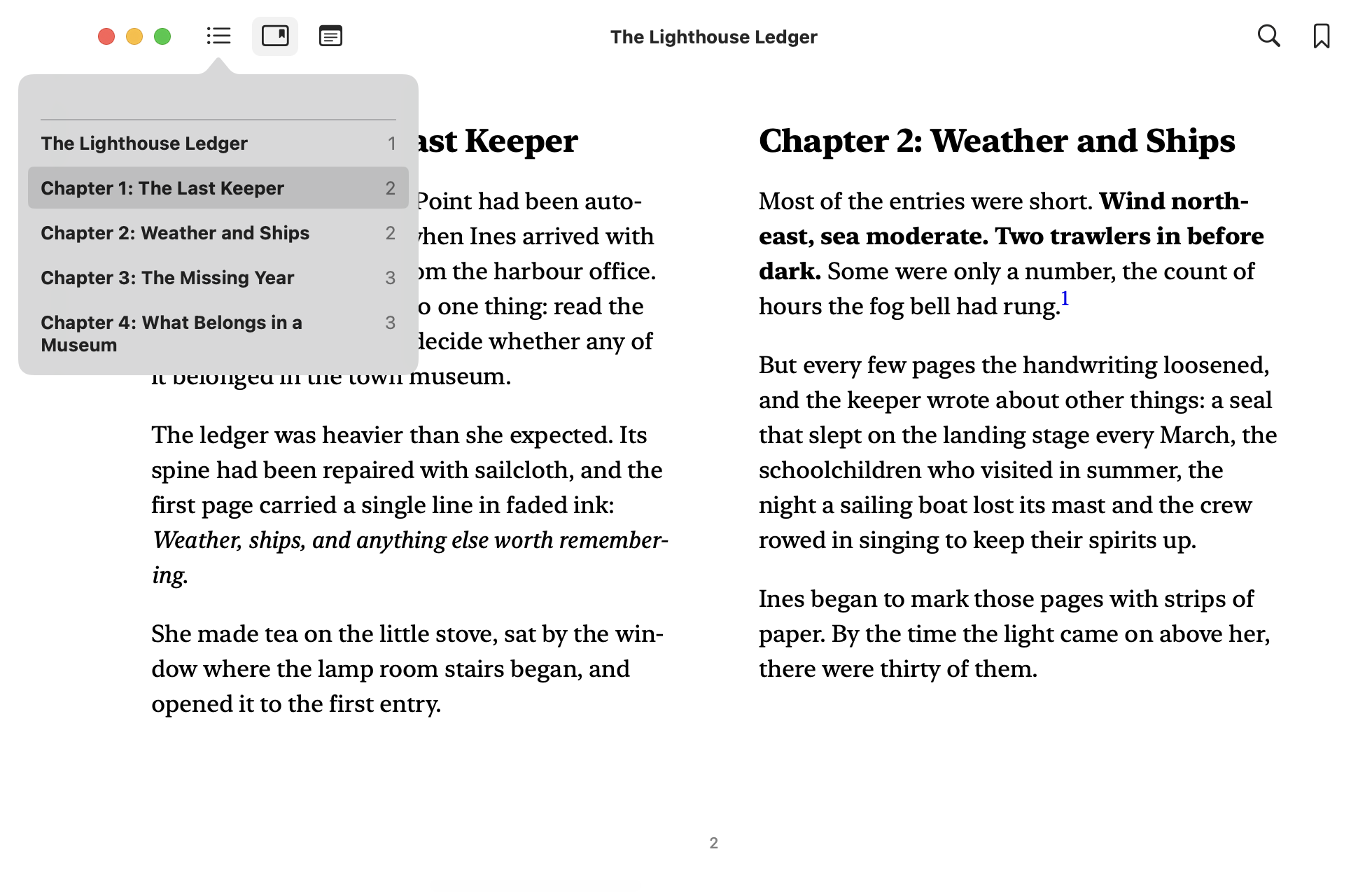
The Lighthouse Ledger is one of the original sample files on this site. Its HTML has one Heading 1 (the title), an opening author's note and four chapters marked as Heading 2. This is the contents list of the EPUB the converter made from it:
| Heading in the HTML | Chapter in the EPUB |
|---|---|
| Heading 1: The Lighthouse Ledger, then the author's note | 1. The Lighthouse Ledger (the opening note) |
| Heading 2: Chapter 1: The Last Keeper | 2. Chapter 1: The Last Keeper |
| Heading 2: Chapter 2: Weather and Ships | 3. Chapter 2: Weather and Ships |
| Heading 2: Chapter 3: The Missing Year | 4. Chapter 3: The Missing Year |
| Heading 2: Chapter 4: What Belongs in a Museum | 5. Chapter 4: What Belongs in a Museum |
The book also gets a title page and a contents page, and the footnote in Chapter 2 still jumps to its note in Chapter 4. You can download the source HTML and the finished EPUB to compare the two.
Method 2: Calibre, on a computer
Calibre is a free ebook manager for Windows, macOS and Linux. It is a good choice if you already keep your books in it, or if you want to convert to formats other than EPUB.
- Select Add books and choose the .html file. Calibre packs the HTML together with the images and files it links to. By default, linked files must be in the same folder as the HTML or in a folder inside it.
- Select the book, then Convert books, and set the output format to EPUB.
- Under Metadata, check the title and author, and add a cover image if you have one.
- Under Structure detection, check how chapters are found. By default, Calibre starts a chapter at a Heading 1 or Heading 2 that contains a word such as "chapter", "book", "section" or "part". It also starts one at any element with the class "chapter". If your chapters have other titles, enter
//h:h2in Detect chapters at (use//h:h1if they are Heading 1). - Under Table of Contents, you can set Level 1 TOC to
//h:h1and Level 2 TOC to//h:h2to get a two-level contents list. - Select OK. When the job finishes, EPUB appears among the book's formats. Use Save to disk to get the file.
To start a chapter at each Heading 2 and list those chapters as top-level entries in the table of contents, run this command:
ebook-convert work.html work.epub --chapter "//h:h2" --level1-toc "//h:h2"
Things to know before you rely on Calibre:
- Margins. Calibre keeps the page's own CSS and adds a 5 pt page margin by default. If the page's CSS sets fixed margins, the book can look cramped or oddly indented. Under Look & feel, then Styling, you can filter out style properties such as
margin-leftandmargin-right. The command line option is--filter-css margin-left,margin-right. - Several HTML files. To join files in a set order, Calibre's manual says to make one more HTML file that links to the others in reading order, and convert that file.
- Validity. Calibre's FAQ says it aims for books that work on real devices, and it does not guarantee a valid EPUB unless the input is valid XHTML 1.1 with CSS 2.1.
Method 3: Pandoc, for repeatable conversions
Pandoc is a free command line converter. It suits writers and anyone converting the same kind of file again and again, because the whole conversion fits in one command you can reuse.
pandoc work.html -o work.epub --split-level=2 --toc
What each part does:
--split-level=2starts a new section file at each Heading 2. Pandoc splits at Heading 1 by default. Versions before 3.0 call this option--epub-chapter-level. A story with one Heading 1 title and Heading 2 chapters would otherwise end up in one long file, which some reading apps open slowly.--tocadds a contents page to the book. The reader's own contents menu lists headings down to Heading 3 by default.
Optional additions:
- To add a cover, append
--epub-cover-image=cover.jpgwith the name of your own image file. Pandoc recommends images smaller than 1000 pixels in width and height. - Add
-M title="Book title" -M author="Name"if the file's own title is missing or wrong.
Pandoc looks for images relative to the folder you run it from. Run the command in the folder that holds the HTML, or point to the image folder with --resource-path. To join several files, list them in reading order: pandoc ch1.html ch2.html ch3.html -o book.epub.
Pandoc rebuilds the book from the document's structure and styles it with its own small stylesheet. You can supply a different one with --css.
Which method should you use?
| Browser converter | Calibre | Pandoc | |
|---|---|---|---|
| Install | None. Works on phones too | Desktop app | Command line tool |
| AO3 downloads | Recognizes AO3's layout: title, authors, tags, summary, chapters and notes | Converted like any other HTML file | Converted like any other HTML file |
| Chapters | Picks the heading level for you. You can change the level, rename or leave out chapters | Heading 1 or 2 with words like "chapter", or your own XPath | Heading 1 by default, or the level you set |
| Several files | Sorted by name in natural order (1, 2, 10). You can reorder them | Needs an extra HTML file that links them in order | Listed in order on the command line |
| Images | Add the folder or a ZIP. Missing images are listed | Follows links to files next to the HTML | Searched from the current folder or a resource path |
| Margins and styles | Removes the page's styling by default, or keeps basic styles if you choose | Keeps the page's CSS unless you filter it | Uses its own stylesheet |
| Best for | AO3 works, saved pages, quick one-off books | Managing a library and other output formats | Scripts, writing projects and batch builds |
If you just downloaded an AO3 work and want to read it tonight, the browser converter is the shortest path. If you already use Calibre for your library, convert there so the book stays with the rest of your collection.
Fix the most common problems
- The margins look strange. AO3 downloads and many saved pages include their own page margins. The browser converter's reading layout removes them. In Calibre, filter out the margin properties as described above.
- The whole story appears as one chapter. If the reader’s contents menu shows only one entry, check the chapter titles in the source HTML. Mark each chapter title as a heading, such as
<h2>, and convert again. In the browser converter, select the matching heading level. If the contents menu already lists the chapters but you want Pandoc to split the EPUB into separate files at Heading 2, use--split-level=2. - Images are missing. The image files were not added with the HTML. Add the
_filesfolder or a ZIP. Images hosted on other websites are often blocked from download. - Letters look garbled, such as é or ’. The file's character encoding was read wrongly. Choose UTF-8 or the file's real encoding and convert again.
- The library shows the wrong title. Reading apps show the title stored inside the EPUB, not the file name. Fix it before converting, or change it later with the EPUB metadata editor.
- There is no cover, or the wrong one. Set a cover while converting, or add one to the finished book with the EPUB cover editor.
Example: a missing image in the report. The illustrated tutorial sample on the home page shows what this looks like. Its ZIP holds the HTML and two of its image files. A third image, images/progress-chart.png, is left out on purpose, and a fourth is embedded in the HTML itself. The check report lists 4 images found, 3 embedded and 1 missing, with the reason "file not found". In the finished EPUB, the missing picture's place shows its alt text: "[Bar chart of books finished per month]". With your own pages, find the missing file in the saved folder, add it with Add missing files in the report, and create the EPUB again. The report should then show every image as embedded.
Check the EPUB before you read it
Open the book in the app you plan to use. Jump to a chapter from the contents, look at a page with an image, and follow one footnote if the story has any. Those three checks catch most problems a converter can cause.
For a formal check, EPUBCheck is the W3C's free conformance checker for EPUB 2 and EPUB 3. It runs from the command line and needs Java: java -jar epubcheck.jar work.epub. The three sample EPUBs on the home page were checked with EPUBCheck 5.1.0 on November 26, 2026, with 0 errors and 0 warnings. EPUBCheck checks the file's structure. It does not proofread your text or tell you how a particular app will display it.
Read the EPUB on your device
| Device | How to add the EPUB |
|---|---|
| iPhone and iPad (Apple Books) | Open the file in the Files app, tap Share, then choose Books. |
| Mac (Apple Books) | Double-click the EPUB, or drag it into Books. |
| Kindle | Send the EPUB with Amazon's Send to Kindle, by website, app or email. Amazon converts it and delivers it to your Kindle devices and apps. |
| Kobo | Connect the e-reader to a computer by USB, copy the EPUB onto it, then eject it. |
| Android | Open the file from Downloads in your EPUB app, or upload it on the Google Play Books website. |
Send to Kindle also accepts HTML files directly. Converting first gives the book proper chapters, a contents list and the title and cover you chose.
What happened to AO3's EPUB downloads
These dates come from AO3's official status page. Times are in UTC.
- October 30, 2026: AO3 reported a security incident and stayed offline while its volunteers investigated.
- November 15: AO3 came back with some features turned off, so it could reopen before its four-week estimate. Works could only be downloaded in HTML format.
- November 19: AO3 went down for preventative maintenance and was back up the same day. Icons, importing works from other sites, and downloads in formats other than HTML were still disabled.
Questions people ask
Does AO3's HTML download include the whole work?
Download, then HTML, saves the whole work in one file: all posted chapters, plus the summary, notes and tags. A browser "Save Page" copy may hold only the chapter that was open on screen. Compare the chapter count in the converter with the count on the work page.
Can I convert HTML to EPUB on an iPhone or Android phone?
Yes. The browser converter works in Safari and Chrome on phones. Choose the file from Files or Downloads, create the EPUB, and open it in Books or your reading app. If your phone cannot choose a folder of images, add a ZIP of the HTML and its images instead. Calibre and Pandoc need a computer.
Why does my EPUB look different from the web page?
EPUB text reflows to fit the screen and your font size. A good conversion drops the web page's fixed widths and margins on purpose, so the book reads well on a small screen.
Will I still need this once AO3 restores EPUB downloads?
For AO3, its own EPUB download will cover most needs again. Converting is still useful when you want an edition AO3 does not offer, such as a chapter range or a custom cover. It is also how you turn saved pages, exported manuscripts and HTML from other websites into books.
Can I share the EPUB I made from an AO3 work?
Keep it as a personal reading copy. The work still belongs to its author. Converting it does not give you permission to repost or share it elsewhere.
About this guide
This guide is maintained by HTML to EPUB, the site that runs the browser converter described above. The converter steps and sample results come from that tool and the sample files linked on this page. The Calibre and Pandoc steps follow their official manuals. We did not run those two programs for this guide. The AO3 timeline comes from the OTW status page, last checked November 27, 2026. We will update the status box when AO3 restores its other download formats.
If something here is out of date or wrong, tell us through the contact page.
Sources: OTW status page, calibre conversion manual, calibre ebook-convert reference, calibre FAQ, Pandoc user's guide, EPUBCheck.